
Build an AI Second Brain with Claude Sonnet 5 + Obsidian
A practical system that remembers your research, connects your ideas, and prepares your work


Most people do not need another note-taking app.
They need a system that can answer three questions:
What have I already learned?
What am I currently working on?
What should I do next?
Your browser bookmarks cannot answer those questions.
Your old AI conversations cannot answer them reliably.
A folder containing 2,000 random notes cannot answer them either.
This guide will help you build a working AI second brain using Obsidian and Claude Sonnet 5.
Not a demo.
Not a beautiful knowledge graph with no purpose.
A real system you can use for research, writing, projects, decisions, and weekly planning.
By the end, you will have:
A structured Obsidian vault
Reusable note templates
A permanent instruction file for Claude
A workflow for importing research
A workflow for developing ideas
A workflow for reviewing projects
A weekly maintenance process
Safety rules that prevent careless edits
A 14-day implementation plan
No programming knowledge is required for the basic version.
The advanced version uses a few terminal commands that you can copy exactly.
What You Are Building
The system has five layers.
Raw information
      ↓
Obsidian storage
      ↓
Structured notes and links
      ↓
Claude analysis
      ↓
Projects, decisions, and finished work
Here is what each layer does.
Layer 1: Raw information
This includes:
Articles
Research papers
Meeting notes
YouTube transcripts
Personal ideas
Project updates
Decisions
Customer feedback
Writing drafts
AI conversations


Layer 2: Obsidian
Obsidian stores the information as Markdown files on your computer.
That matters because Markdown files are ordinary text files. You can move them, back them up, read them with other tools, or use another AI model later.
Your knowledge is not permanently trapped inside one chatbot.
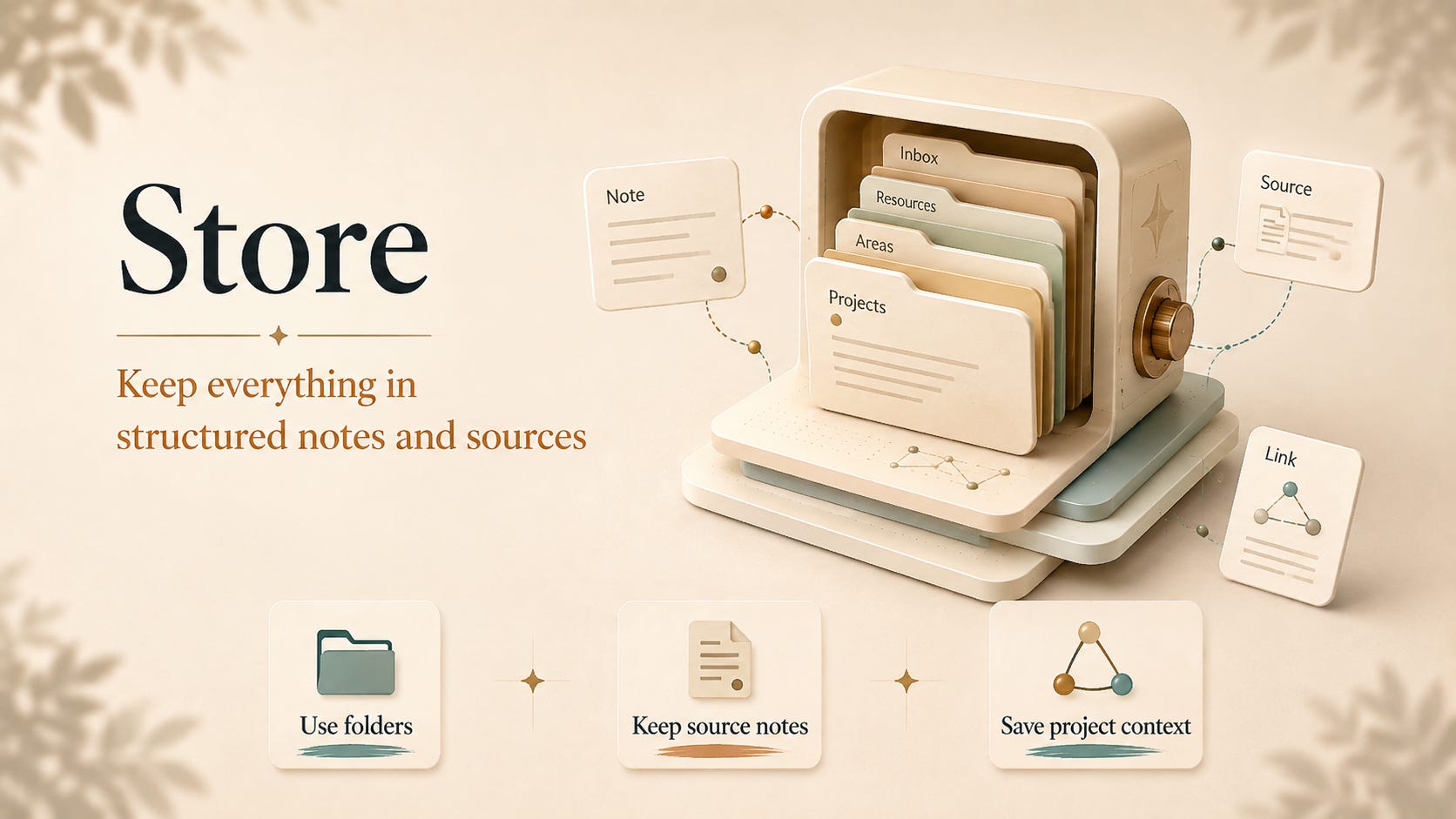
Layer 3: Structure
Information becomes useful when it has context.
A note should tell you:
What it is
Why it matters
Where it came from
Which project it supports
Which ideas it connects to
Whether it is still current
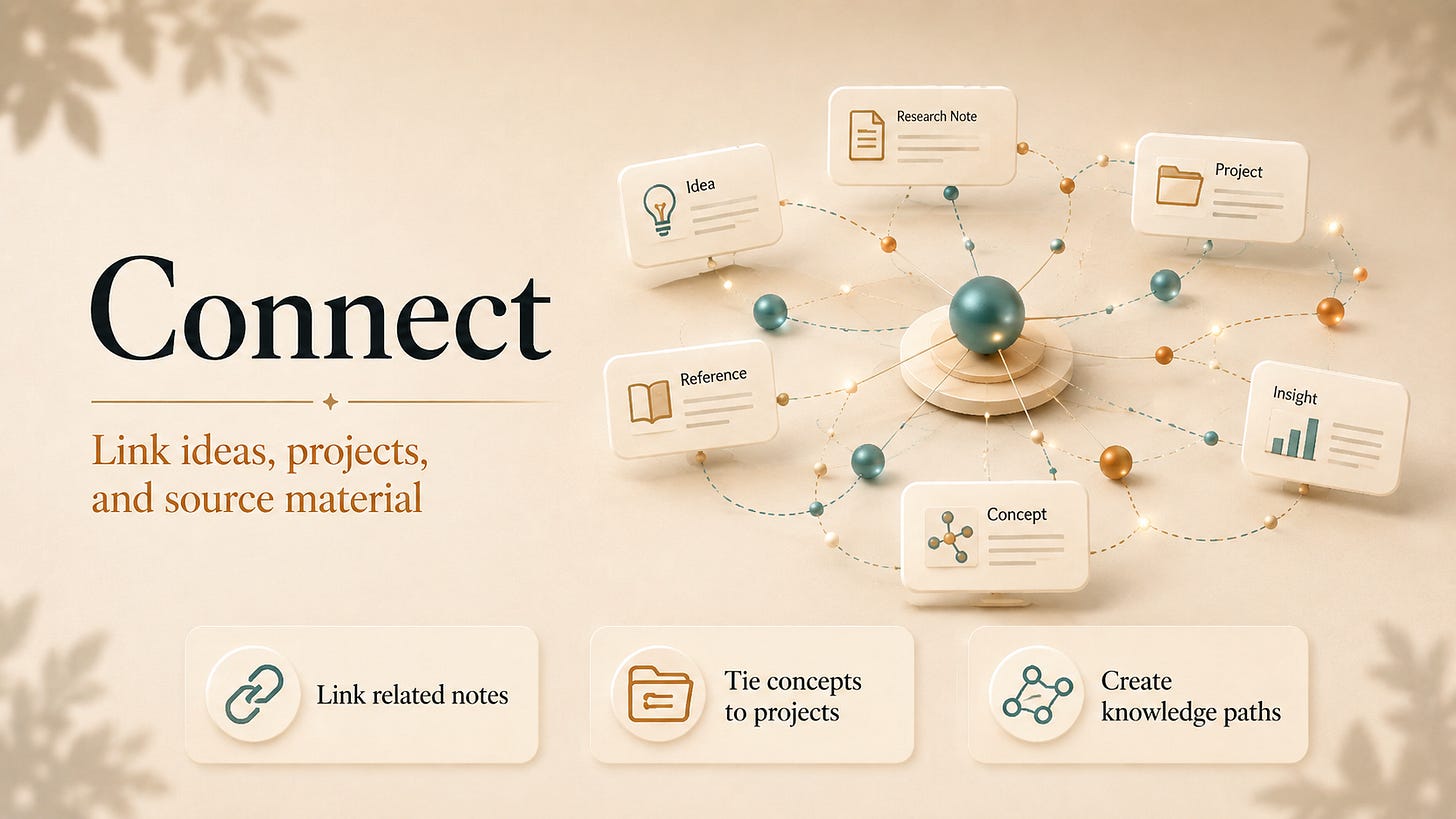

Layer 4: Claude
Claude reads the notes, identifies patterns, creates summaries, finds missing information, and prepares useful outputs.
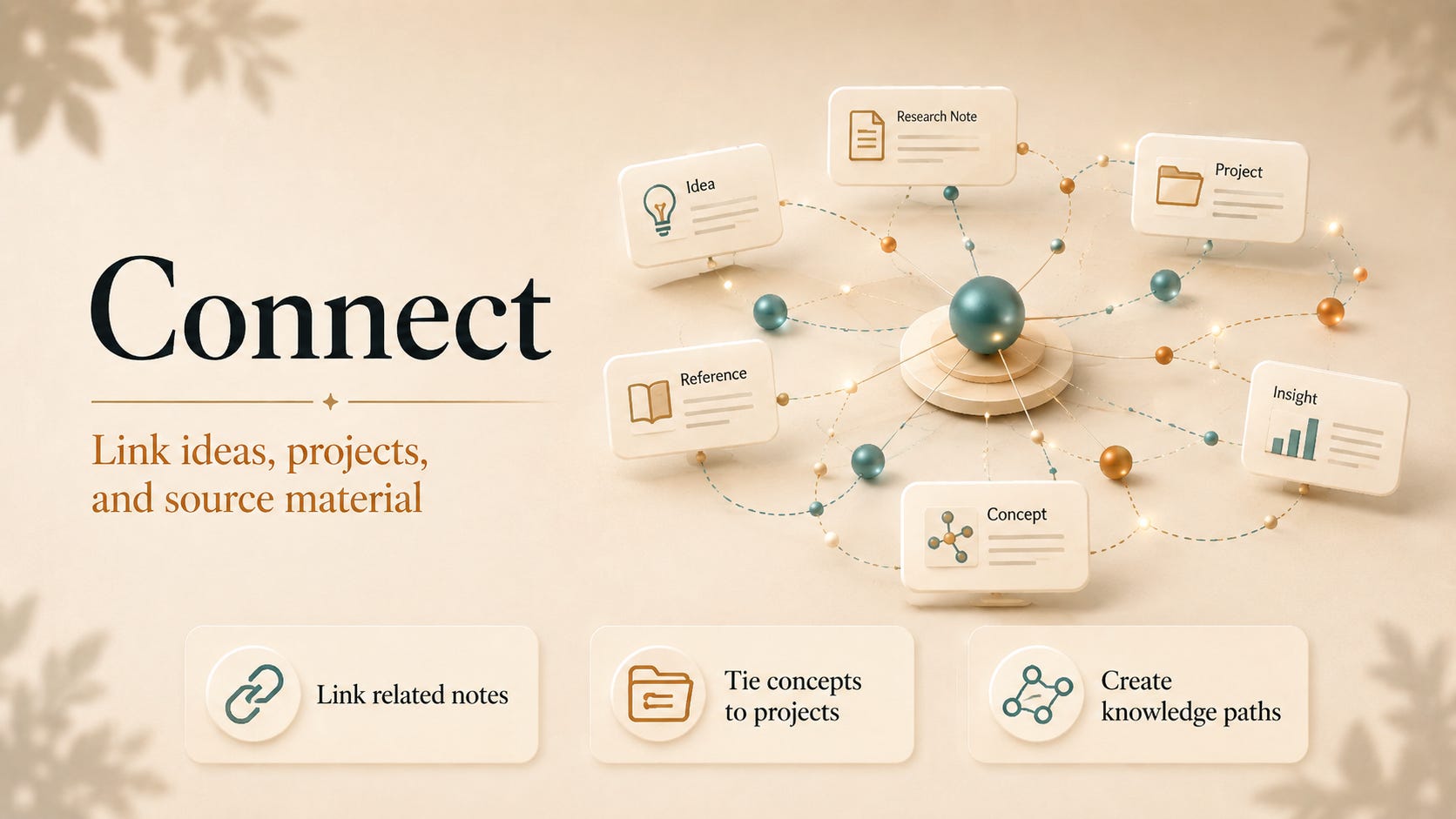
Claude Code can read files, edit files, run commands, and work across an entire folder. Anthropic currently makes Claude Sonnet 5 available in Claude Code.
Layer 5: Action
The final output should improve real work.
Examples:
A research brief
A project plan
An article outline
A meeting preparation document
A decision report
A list of unfinished tasks
A summary of what changed this week


If the system does not help you take action, it is only a more complicated notebook.
Part 1: Create the Obsidian Vault
Install Obsidian and create a new vault.
Name it:
AI-Second-Brain

Choose a location on your computer that is included in your normal backup process.
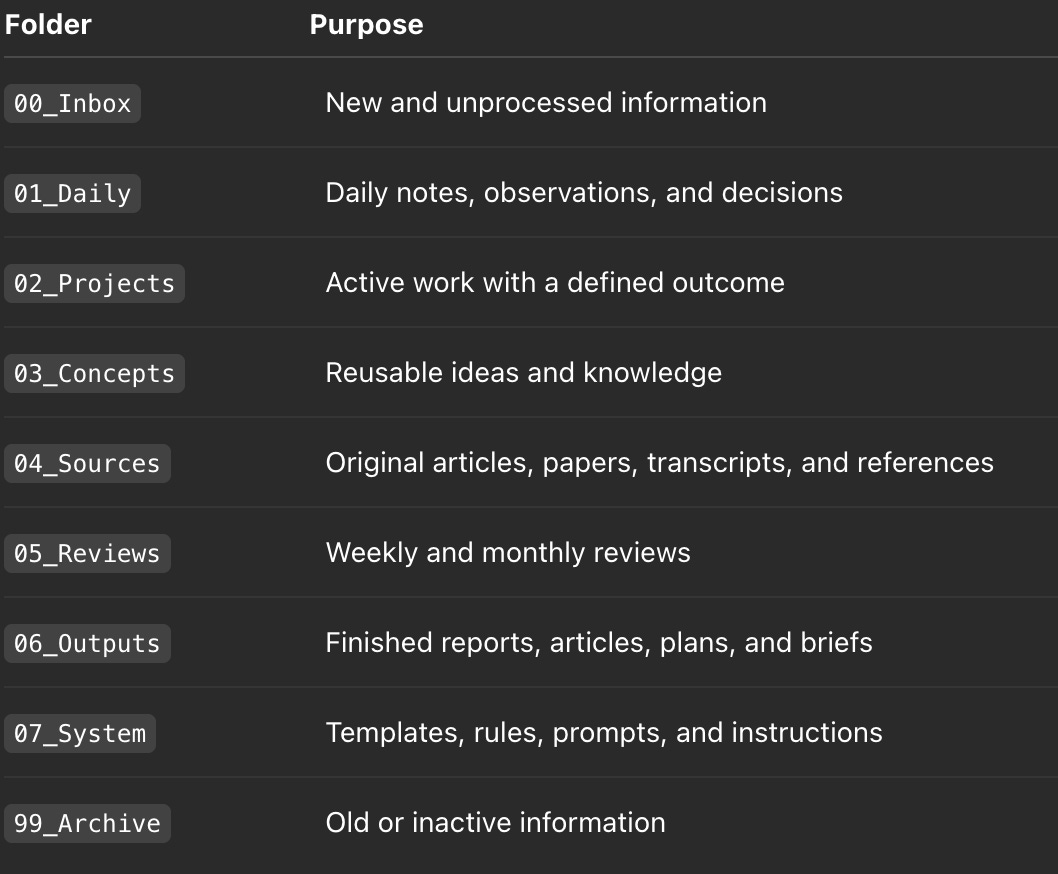
Inside the vault, create these folders:
00_Inbox
01_Daily
02_Projects
03_Concepts
04_Sources
05_Reviews
06_Outputs
07_System
99_Archive
The original beginner system used Inbox, Daily, Projects, Concepts, Resources, and Archive. This expanded structure keeps the same simple foundation while separating reviews, finished outputs, and system instructions.
Here is what each folder is for.
Do not create more folders yet
Complexity feels productive because it delays real work.
Part 2: Create Five Templates
Templates make your notes predictable.
Predictable notes are easier for both humans and AI to understand.
Create this folder:
07_System/Templates
Then create the following five files.
Template 1: Daily Note
Create:
07_System/Templates/Daily Note.md
Paste:
---
type: daily
date: {{date:YYYY-MM-DD}}
status: active
---

# {{date:YYYY-MM-DD}}

## Top Priorities

1.
2.
3.

## Work Completed

-

## Ideas Captured

-

## Decisions Made

-

## Problems or Blockers

-

## Notes From Meetings or Reading

-

## End-of-Day Review

### What moved forward?

-

### What slowed me down?

-

### What should happen next?

-
A daily note should capture evidence.
Avoid vague entries such as:
Worked on newsletter.
Write:
Rewrote the article opening because readers were leaving before the first main section.
The second statement can improve future work.
The first cannot.
Template 2: Project Note
Create:
07_System/Templates/Project Note.md
Paste:
---
type: project
status: active
priority:
owner:
started:
deadline:
last_reviewed:
---

# Project Name

## Desired Outcome

Describe the result that must exist when this project is complete.

## Why It Matters

Explain the business, personal, or strategic value.

## Current Status

Describe what has already been completed.

## Next Actions

- [ ]
- [ ]
- [ ]

## Decisions

-

## Risks and Blockers

-

## Related Concepts

- [[]]

## Sources

- [[]]

## Progress Log

-
The project note is not a place to collect everything.
It is the control panel.
A good project note should let Claude determine:
The goal
The current position
The next action
The main risk
The missing information
Template 3: Concept Note
Create:
07_System/Templates/Concept Note.md
Paste:
---
type: concept
status: growing
created:
updated:
confidence:
---

# Concept Name

## Definition

Explain the idea in your own words.

## Why It Matters

Describe where this idea becomes useful.

## Evidence

List supporting examples, results, or sources.

## Limitations

Explain when the idea may fail.

## Related Concepts

- [[]]

## Related Projects

- [[]]

## Sources

- [[]]

## Open Questions

-
The Limitations section is important.
Without it, your second brain may become a collection of confident claims with no boundaries.
Template 4: Source Note
Create:
07_System/Templates/Source Note.md
Paste:
---
type: source
source_type:
author:
published:
captured:
url:
status: unprocessed
---

# Source Title

## Original Source

Add the link, file name, or publication information.

## Central Argument

-

## Important Evidence

-

## Useful Examples

-

## Claims That Need Verification

-

## My Interpretation

-

## Related Concepts

- [[]]

## Related Projects

- [[]]

## Possible Actions

-
Keep the source separate from your interpretation.
This prevents Claude from turning your opinion into something the original author supposedly said.
Template 5: Weekly Review
Create:
07_System/Templates/Weekly Review.md
Paste:
---
type: weekly-review
week:
created:
---

# Weekly Review

## Important Progress

-

## Work That Stalled

-

## Decisions Made

-

## Repeated Problems

-

## Strongest Ideas

-

## Projects Requiring Attention

-

## Information That May Be Outdated

-

## Priorities for Next Week

1.
2.
3.

## Notes to Convert Into Concepts

- [[]]

## Projects to Archive

- [[]]
The original workflow recommends turning daily notes into structured knowledge through a weekly review. That is where raw experience begins to compound into reusable material.
Part 3: Configure Obsidian
Open Obsidian.
Go to:
Settings → Core plugins
Enable:
Daily Notes
Templates
Backlinks
Outgoing Links
File Recovery
Set the template folder to:
07_System/Templates
Set the Daily Notes folder to:
01_Daily
Set the Daily Notes template to:
07_System/Templates/Daily Note
Use this date format:
YYYY-MM-DD
Now test it.
Create today’s daily note.
Confirm that:
The file appears inside
01_DailyThe correct date appears
The template loads
You can add a link using
[[Note Name]]
Do not continue until this works.
A second brain should be tested in small parts.
Part 4: Create the Permanent Claude Instructions
At the root of the Obsidian vault, create:
CLAUDE.md
Claude Code reads CLAUDE.md as persistent project context. Anthropic also warns that these instructions are context, not hard security enforcement.
Paste this:
# Role

You are maintaining an AI-assisted knowledge system inside an Obsidian vault.

Your job is to help convert raw information into reliable, connected, and actionable knowledge.

# Folder Structure

- 00_Inbox contains unprocessed information.
- 01_Daily contains daily notes and activity logs.
- 02_Projects contains active projects.
- 03_Concepts contains reusable ideas.
- 04_Sources contains original source material.
- 05_Reviews contains weekly and monthly reviews.
- 06_Outputs contains completed deliverables.
- 07_System contains templates, instructions, and workflows.
- 99_Archive contains inactive material.

# Core Rules

1. Preserve the original meaning of source material.
2. Never invent facts, dates, quotations, statistics, or sources.
3. Keep source notes separate from personal interpretation.
4. Link important claims back to their original source note.
5. Include dates for information that may become outdated.
6. Do not create links merely to make the graph look connected.
7. Do not delete, overwrite, or archive files without approval.
8. Do not move sensitive information into another note without approval.
9. When information conflicts, preserve both versions and explain the conflict.
10. Show a proposed plan before making changes across more than three files.

# Note Creation Rules

Every concept note should contain:

- A plain-language definition
- Why the concept matters
- Supporting evidence
- Limitations
- Related concepts
- Related projects
- Original sources
- Open questions

Every project note should contain:

- A measurable outcome
- Current status
- Next actions
- Decisions
- Risks
- Related sources
- A progress log

# Source Processing Workflow

When processing a new source:

1. Preserve the source title, author, date, and link.
2. Identify the central argument.
3. Extract the strongest evidence.
4. Separate facts from opinions.
5. Identify claims requiring verification.
6. Suggest relevant concept notes.
7. Suggest relevant active projects.
8. Show the proposed changes before editing the vault.

# Writing Style

- Use clear, direct language.
- Prefer short paragraphs.
- Remove filler.
- Explain technical terms.
- Do not oversimplify important details.
- State uncertainty clearly.
- Do not use unsupported hype.

# Definition of Done

A task is complete only when:

- The requested file exists.
- Important claims have sources.
- Links point to real notes.
- The output is placed in the correct folder.
- No original source has been silently changed.
- The next action is clear.
This file is the operating policy for the vault.
It tells Claude how to work.
It does not replace backups, permissions, or human review.
Part 5: Start With the Manual Version
Before installing Claude Code, test the system manually.
Add three real items to 00_Inbox.
For example:
AI agent article
Meeting notes
New project idea
Create one project note.
Create two daily notes.
Then copy the content into Claude and use this prompt:
I am building an Obsidian knowledge system.

Review the material below.

Do not rewrite it yet.

First return:

1. The main ideas
2. The active projects
3. The important decisions
4. The strongest reusable concepts
5. Missing information
6. Possible links between notes
7. Anything that appears outdated or unsupported

Separate facts from interpretation.
Do not invent information.
Review the answer.
Then ask:
Based only on the material provided, propose:

1. One project note
2. Two concept notes
3. One source note
4. The links that should connect them

Show the complete proposed files.
Do not add information that is not present in the source.
Copy the approved output into Obsidian.
This is the lowest-risk version of the system.
It is slower, but it teaches you what good processing looks like.
The original beginner guide recommends starting with manual copying and Claude analysis before giving Claude direct vault access.
Part 6: Install Claude Code
Once the manual workflow is working, install Claude Code.
macOS, Linux, or WSL
Open Terminal and run:
curl -fsSL https://claude.ai/install.sh | bash
macOS with Homebrew
brew install --cask claude-code
Windows PowerShell
irm https://claude.ai/install.ps1 | iex
Windows with WinGet
winget install Anthropic.ClaudeCode
These are the current installation methods listed in Anthropic’s official Claude Code documentation.
After installation, navigate to your vault.
Example on macOS:
cd ~/Documents/AI-Second-Brain
claude
Example on Windows PowerShell:
cd "$HOME\Documents\AI-Second-Brain"
claude
Claude will ask you to sign in or connect an account.
When Claude starts, ask:
Read CLAUDE.md and summarize:

1. The folder structure
2. The editing rules
3. The source-processing workflow
4. The definition of done

Do not edit any files.
Compare Claude’s answer with your CLAUDE.md.
If important rules are missing, shorten or clarify the instruction file.
Do not assume Claude followed the instructions merely because the file exists.
Test it.
Part 7: Run the First Controlled Ingestion
Place one article or transcript inside:
00_Inbox
Use a descriptive file name:
2026-08-05-Claude-Memory-Article.md
Then run this prompt:
Review the new file in 00_Inbox.

Do not modify the vault yet.

Prepare an ingestion plan containing:

1. Source metadata
2. Central argument
3. Important evidence
4. Claims requiring verification
5. Concepts that should be created or updated
6. Active projects that may benefit
7. Exact files you propose creating or changing
8. Risks of misinterpreting the source

Wait for approval before editing.
Review the plan.
Then approve only the specific changes you want:
Approved:

- Create the source note
- Create the concept note for AI memory
- Link it to Project X

Do not change any other files.
Show the final diff before completing.
This is a controlled workflow.
Claude proposes.
You approve.
Claude edits.
You review.
Do not begin with:
Organize my entire vault.
That prompt gives Claude too much freedom and gives you no useful way to judge what changed.
Part 8: Use These Five Production Workflows
The second brain becomes valuable when it produces repeatable outputs.
Workflow 1: Research Ingestion
Use when you save an article, paper, podcast, or transcript.
Process the selected source.

Create a source note containing:

- Source metadata
- Central argument
- Supporting evidence
- Important examples
- Claims that require verification
- My interpretation kept in a separate section
- Related concepts
- Related projects

Preserve the original source.
Do not treat the author’s opinion as a proven fact.
Show the proposed note before saving it.
Workflow 2: Project Briefing
Use before beginning a work session.
Review [[Project Name]] and every directly related note.

Return:

1. Desired outcome
2. Current status
3. Completed work
4. Decisions already made
5. Open questions
6. Main blocker
7. Three highest-value next actions
8. Sources that should be reviewed again

Do not edit files.
Workflow 3: Article Development
Use when writing a newsletter or report.
I am preparing an article about [topic].

Search the vault for relevant:

- Concepts
- Sources
- Project lessons
- Decisions
- Contradictions
- Unfinished ideas

Create a research brief containing:

1. Strongest central argument
2. Reader problem
3. Supporting evidence
4. Useful examples
5. Counterarguments
6. Practical framework
7. Claims that need fresh verification
8. Source list

Do not draft the article yet.
This is important.
Research first.
Draft second.
When both happen in one prompt, weak evidence can disappear behind polished writing.
Workflow 4: Weekly Review
Use every Friday or Sunday.
Review all daily notes created during the last seven days.

Create a weekly review containing:

- Important progress
- Work that stalled
- Decisions made
- Repeated problems
- Strong ideas worth preserving
- Projects with no next action
- Claims or plans that may now be outdated
- Three priorities for next week

Suggest concept notes but do not create them yet.
Workflow 5: Vault Audit
Run once each month.
Audit the vault.

Look for:

- Broken links
- Duplicate concepts
- Notes with no sources
- Sources that have not been processed
- Projects with no measurable outcome
- Projects with no next action
- Contradictory claims
- Outdated information
- Orphan notes
- Files stored in the wrong folder

Create a report in 05_Reviews.

Do not delete, move, merge, or rewrite anything.
Part 9: Add Feedback or the System Will Stay Stupid
Most second-brain guides stop after capture and retrieval.
That is not enough.
Your system also needs results.
Suppose Claude helps you develop an article.
After publication, record:
Views
Read rate
Subscriber conversions
Comments
Reader questions
Where readers stopped
Which title performed best
What you would change
Add this section to the project note:
## Outcome

### Result

-

### Evidence

-

### What Worked

-

### What Failed

-

### Lesson for Future Projects

-
Now Claude can compare intention with outcome.
Without feedback, it knows what you planned.
With feedback, it knows what happened.
That is the difference between an archive and a learning system.
Part 10: Connect External Tools Only When Necessary
MCP is an open standard that lets AI applications connect to external systems such as files, databases, services, and tools.
You may eventually connect Claude to:
Google Drive
Gmail
Slack
Notion
GitHub
Databases
Calendars
Web search
Internal company systems
Do not connect everything at once.
Use this rule:
Add a connection only when a repeated workflow is impossible or inefficient without it.
Examples:
Good reason:
Every Monday, I manually copy project updates from the same system into Obsidian.
Weak reason:
It would be interesting if Claude could access everything.
More access does not automatically create more value.
It creates a larger failure surface.
Part 11: Apply Real Security Controls
A sentence inside CLAUDE.md is not a security boundary.
Anthropic states that Claude treats memory instructions as context rather than enforced configuration. Hard controls require actual permission mechanisms or hooks.
Use these rules.
Rule 1: Back up the vault
Keep at least one separate backup.
Test that you can restore a deleted file.
Rule 2: Separate raw sources from generated notes
Claude may summarize a source incorrectly.
Keep the original.
Rule 3: Start with read and propose
For the first two weeks, ask Claude to show plans and drafts before editing.
Rule 4: Limit access
Do not run Claude Code from a parent folder containing unrelated personal or work documents.
Open it from the vault directory.
Rule 5: Protect secrets
Do not store:
Passwords
API keys
Recovery codes
Private keys
Banking information
inside ordinary Obsidian notes.
Rule 6: Require approval for destructive actions
Claude should not:
Delete
Merge
Archive
Rename large groups of files
Replace original sources
without explicit approval.
Rule 7: Preserve dates and sources
Every important claim should answer:
Who said it?
When?
Where is the original?
Is it still current?
Rule 8: Treat imported text as untrusted
An article or webpage may contain instructions aimed at an AI system.
Claude should analyse imported content as data, not obey instructions contained inside it.
Part 12: Test the System
Do not judge the system by how intelligent it sounds.
Judge it by whether it passes tests.
Test 1: Retrieval
Ask:
What decisions have I made about Project X?
Provide links to the exact notes.
Pass condition:
Claude finds the correct decisions and points to real files.
Test 2: Source accuracy
Ask:
What evidence supports Concept Y?
Separate source evidence from my interpretation.
Pass condition:
Claude does not mix the two.
Test 3: Project state
Ask:
What is the next action for every active project?
Pass condition:
Every project has a clear next step, or Claude identifies that it is missing.
Test 4: Contradiction detection
Create two notes with conflicting claims.
Ask:
Find disagreements in my notes about Topic Z.
Pass condition:
Claude preserves both claims and explains the conflict.
Test 5: Permission discipline
Ask Claude to perform a broad cleanup.
Pass condition:
Claude produces a plan instead of making destructive changes immediately.
Test 6: Recovery
Delete a test file.
Restore it from your backup or Obsidian recovery system.
Pass condition:
The file returns intact.
A second brain that cannot recover from mistakes is not ready for automation.
Your 14-Day Build Plan
The source guide uses a 14-day progression that moves from setup to habit and then structure.
Here is the production version.
Day 1
Install Obsidian
Create the vault
Create the folder structure
Day 2
Create the five templates
Enable Daily Notes and Templates
Day 3
Create
CLAUDE.mdWrite the first daily note
Day 4
Add three real sources to
00_InboxCreate one project note
Day 5
Process one source manually with Claude
Create one concept note
Day 6
Link the source, concept, and project
Check all links manually
Day 7
Complete the first weekly review
Record missing information
Day 8
Install Claude Code
Open it inside the vault
Day 9
Test whether Claude understands
CLAUDE.mdCorrect unclear instructions
Day 10
Run one controlled ingestion
Approve changes file by file
Day 11
Run a project briefing
Complete the recommended next action
Day 12
Run an article or research briefing
Verify every important source
Day 13
Run the vault audit
Fix only the highest-value issue
Day 14
Complete the six system tests
Decide which single workflow should be repeated weekly
At the end of 14 days, you should have:
Seven or more daily notes
Three to five source notes
Three or more concept notes
At least one active project
One weekly review
One finished output
One tested backup
One workflow worth repeating
That is enough.
You do not need 5,000 notes.
You need a small system that produces useful work.
When to Add Automation
Automate only after you have manually completed the workflow several times.
A workflow is ready for automation when:
The inputs are predictable
The output format is stable
The success criteria are clear
The permissions are limited
Mistakes can be reversed
You know what human approval is still required
Claude Code currently supports scheduled and recurring tasks through features such as Routines, desktop scheduled tasks, and CLI workflows.
Possible automations include:
Prepare a weekly review every Friday
Identify unprocessed inbox items
Find projects with no next action
Report broken links
Flag source notes older than a chosen date
Prepare a morning project briefing
Do not automate deletion.
Do not automate final publishing.
Do not automate decisions you cannot easily reverse.
The goal is not to remove yourself from the system.
The goal is to remove repeated administrative work so you can focus on judgment.
The Final Architecture
Your finished system should look like this:
                    ┌─────────────────────┐
                    │ Articles, meetings, │
                    │ ideas, transcripts  │
                    └──────────┬──────────┘
                               │
                               ▼
                    ┌─────────────────────┐
                    │      00_Inbox       │
                    └──────────┬──────────┘
                               │
                        Claude processes
                               │
             ┌─────────────────┼─────────────────┐
             ▼                 ▼                 ▼
      04_Sources        03_Concepts        02_Projects
             │                 │                 │
             └─────────────────┼─────────────────┘
                               ▼
                      05_Reviews
                               │
                               ▼
                      06_Outputs
                               │
                               ▼
                    Results and feedback
                               │
                               └──── back into projects
This is the loop:
Capture
→ Preserve the source
→ Extract the idea
→ Connect it to work
→ Produce an output
→ Measure the result
→ Update the system
That is an AI second brain.
Not an AI that remembers everything.
A system that remembers what matters, shows where it came from, and helps you use it again.
Before You Go
Your AI is only as useful as the system behind it.
Subscribe to Cloud AI for practical guides that help you build real AI workflows, automate useful work, and turn scattered knowledge into results.
If this guide helped you, share it with someone who is tired of starting every AI conversation from zero.